Welcome to the Holland Charter Township Community Center! This guide explains how to use the touch panel to run Bluetooth audio, choose video inputs, adjust sound, and combine/separate rooms.
Quick Start
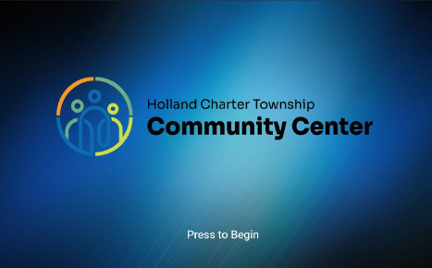
1. Tap Press to Begin on the welcome screen.
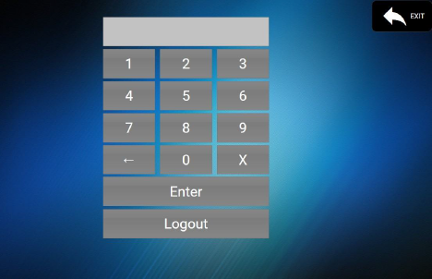
2. If prompted for a code, enter 1234 for regular operation and tap Enter.
(Use 5678 only if you need Manual Room Setup.)
3. Use the bottom icons to switch between Microphone (Mixer), Display (Video), and Bluetooth screens.
Displays & Video (what’s on the TVs)
Power all displays: Tap the Power button on the video screen (turns on all 3 displays for the room group).
Pick a source to show: On Select Video Input, choose the Input you want (e.g., Room 126 Input) and toggle the Display on/off for each room as needed. Rooms 125, 126, and 127 can send/receive sources.
Preview before you show: Use Video Preview to see Room XXX Input vs Room XXX Display and confirm what’s live.
Common examples
Show a laptop in Room 126 to all combined rooms → Select Room 126 Input, then ensure each room’s Display is On.
Turn a single room’s TVs off (while others stay on) → Toggle that room’s Display Off only.
Audio & Microphones (Mixer)
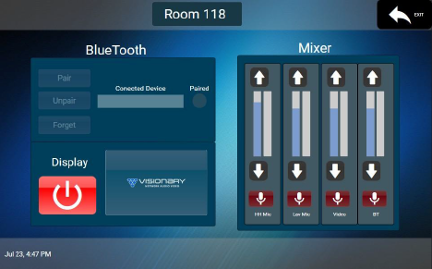
Go to Mixer. Adjust sliders for: HH Mic (handheld), Lav Mic, Video, BT (Bluetooth).
Mute buttons turn red when muted. Tap again to unmute.
Tip: If video is showing but you don’t hear it, raise the Video channel and make sure it isn’t muted.
Bluetooth (play audio from your phone)
Open the Bluetooth screen, tap Pair, and choose the room system from your phone’s Bluetooth list.
Once connected, play audio from your device; adjust volume on the Mixer (channel BT).
To switch users: Unpair (disconnect) or Forget (remove from saved list), then the next user taps Pair.
Room Setup (combine or separate rooms)
Use this only if your event requires changing how rooms share audio/video.
Enter 5678 to access Manual Room Setup.
Pick a layout:
125+126+127 (all together)
125+126
126+127
Separate (each room independent)
You can also switch between Auto and Manual modes if needed.
Please note: If the wall partitions are closed, audio and video cannot be combined across all three spaces.
Buttons & Icons You'll See
Power: turns displays on/off (on the video screens).
Input / Display: choose what to show and where.
Mixer sliders & Mute: control mic, video, and Bluetooth audio levels.
Bluetooth Pair/Unpair/Forget: manage device connections.
EXIT: return to the splash screen.
Troubleshooting
No sound:
Make sure the correct channel (Mic, Video, or BT) is up and not muted in Mixer.
Check your device’s volume (for Bluetooth) and the TV/display volume if applicable.
No image on the TVs:
Confirm you selected the right Input and that each room’s Display is On.
Use Video Preview to verify the source is live.
Bluetooth won't connect:
Put your device in pairing mode, then tap Pair again. If needed, Forget and re-pair.
Need help? Please check with the front desk.
Safety & Care
Clean the screen with a microfiber cloth only—no harsh chemicals.
Keep the panel away from heat, moisture, and direct sun.